ARTWORK PREPARATION · CASEPOP EDITORIAL
Should You Keep the Paper Background in a Watercolor Phone Case?
Keep the paper background if its warm color and visible grain belong to the artwork. Prepare a separate flat-background copy if you want the painted subject to stand apart. Compare both on the same phone model before choosing; neither option guarantees the final print's color or texture.
By CasePop Editorial ·
Preview your watercolor artworkDecide what you want to carry: the whole painting or its subject
A watercolor image can contain more than the painted peaches, flowers or landscape. The paper's off-white tone, soft grain and untouched margins may be part of the composition. Removing that background can change the mood even when the main subject stays recognizable. There is no universal rule that a cleaner background makes a better case.
Start with one practical question: would you miss the paper if you covered it while looking at the original? If yes, preserve it in your first working copy. If the background mostly records a desk shadow, yellow room light or a distracting edge, prepare another copy that addresses that problem. Keep the original untouched so that this decision remains reversible.
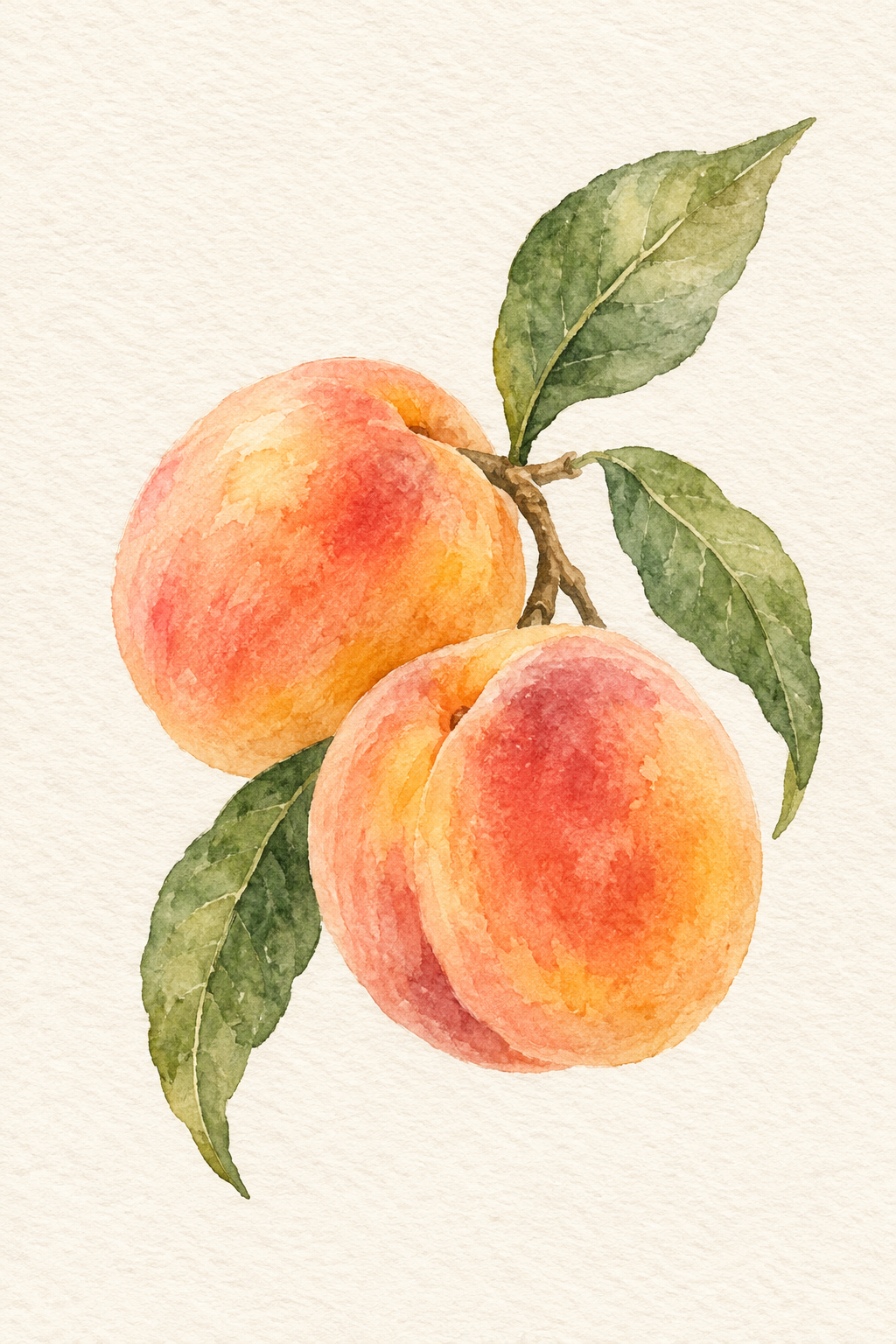
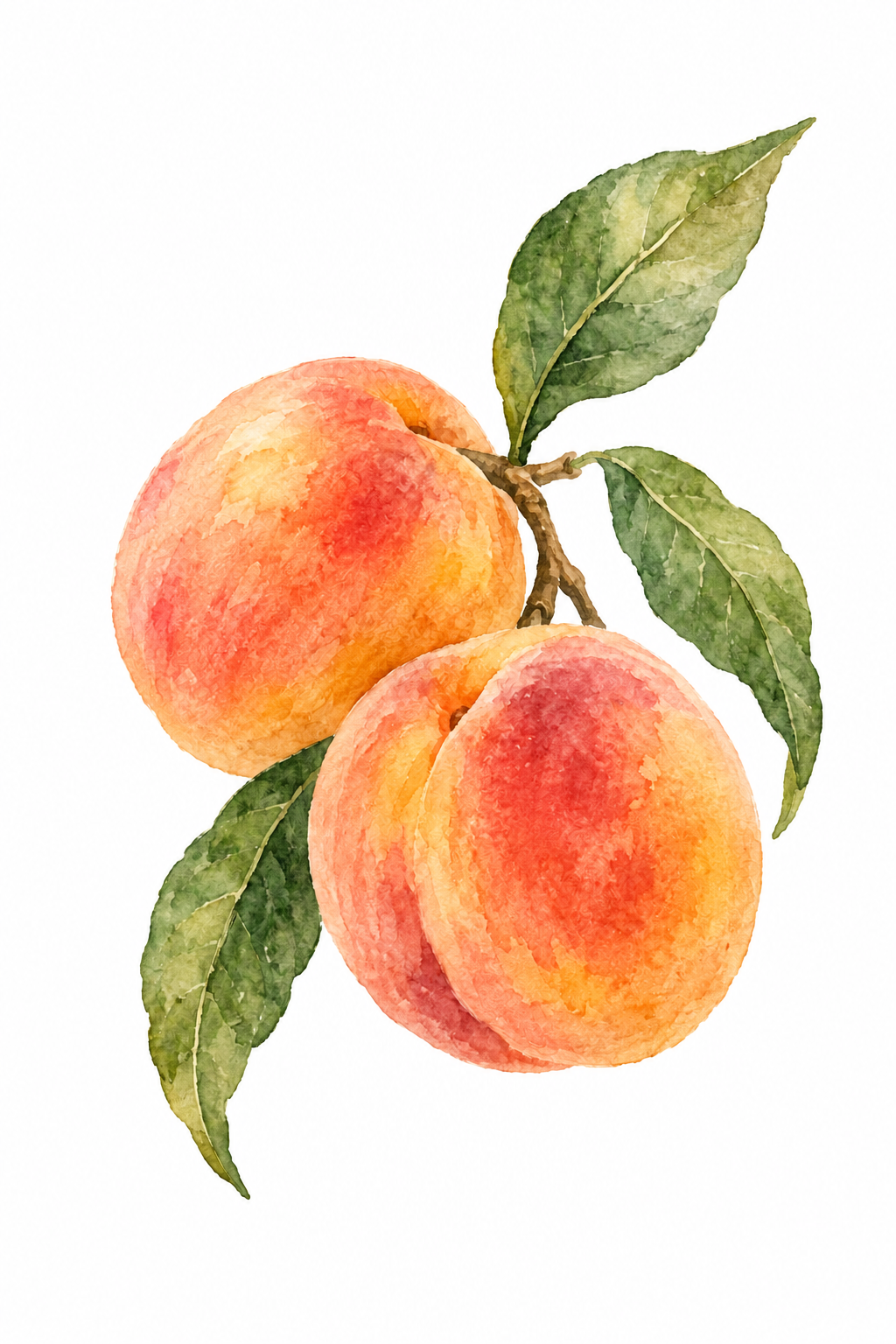
Two teaching images, one intended background decision
Our peach illustration shows a warm paper-style ground beside a flat-white alternative. Both are AI-generated teaching assets, not a photograph of somebody's painting, a customer order or a printed case. The white version was prepared separately before upload; it is not evidence that the studio can automatically erase every paper background.
The edit is not pixel-identical across the painted subject, so this is a visual explanation, not a controlled A/B test or a color-reproduction comparison. Notice the space around the leaves and the overall warmth first. In your own two files, try to keep the subject size, placement and color treatment unchanged while comparing only the background.
Keep texture; remove accidental distractions from the photograph
When using your own paper painting, photograph it straight on in even light and keep the entire composition inside the frame. Leave enough space to decide on the crop later. A cast shadow or a visible table is not the same thing as the paper grain you meant to preserve. Check the corners before uploading instead of assuming the phone preview will correct them.
Review the image at its original size. Look for pale washes disappearing into bright areas and for soft edges being mistaken for blur. Avoid adding aggressive sharpening just to make a small preview look crisp. The editor helps with placement; it cannot recreate detail missing from the file. If the capture is unclear, improve the photograph before making a purchase decision.
Make a separate copy, not a permanent change to the original
If you prefer a flat background, prepare that alternative in an image-editing application you already use. Inspect the edges of leaves, fine stems and transparent washes: a background edit can remove delicate paint along with the paper. Save it under a different filename and reopen it before upload. Do not delete the paper version until you have compared the two.
CasePop's current phone studio accepts PNG, JPG and WebP files up to 12 MB. It recommends an original image at least 1500 pixels on its shortest side for best results. Our two 1024-by-1536 teaching files fall below that recommendation and are used only to explain layout, not to establish print suitability. Enlarging a file's dimensions does not prove that it contains more original detail.
What the actual CasePop editor preview shows
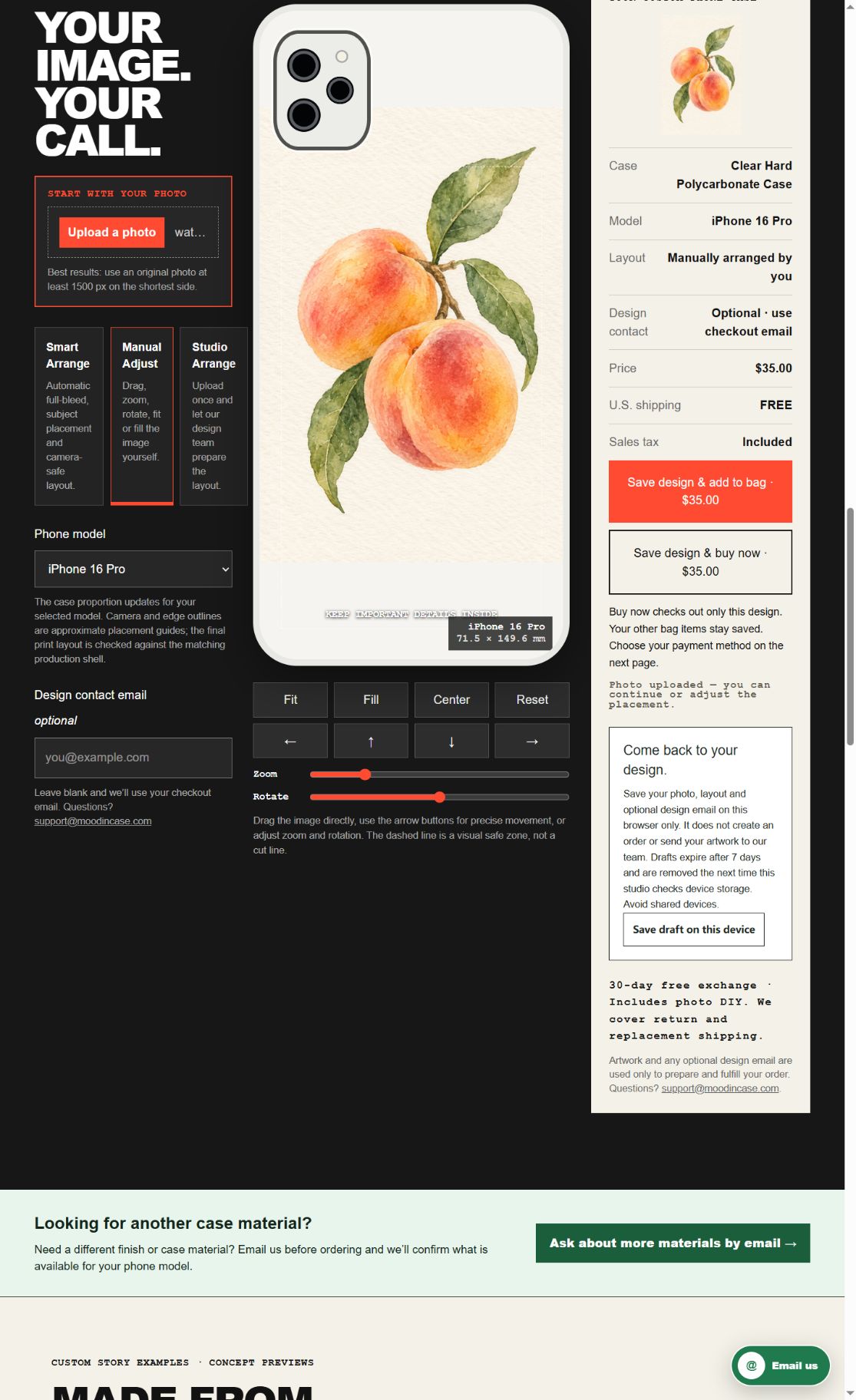
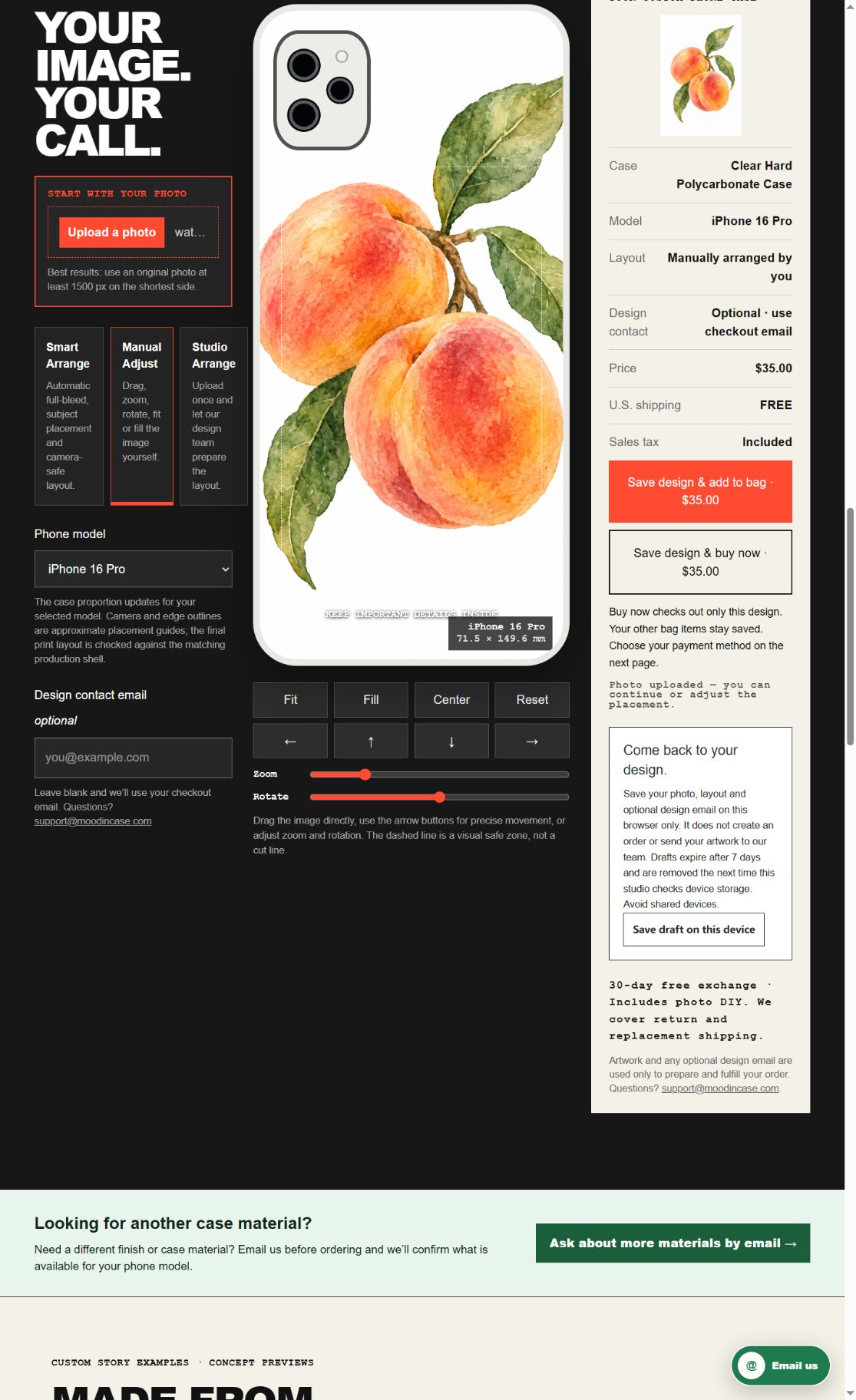
The two captures below were made on October 12, 2026 in a local preview using the current CasePop production source. They show the actual editor component, not a generated interface. We selected iPhone 16 Pro, Clear Hard Polycarbonate Case, Manual Adjust and Fit for both files. No design was saved, no order was created and no payment was started.
With Fit, the complete teaching image remains visible and the camera-area guide is shown. The warm-paper file creates a visible rectangle of textured color around the peaches; the flat-white file creates a different visual boundary against the preview. That observation is about these files and this layout, not proof of how paper grain will reproduce on a manufactured case. Review your own exact model rather than copying this example's settings.
Do not trade away the painting just to fill the case
A large wash or a leaf near the upper edge may become important when the camera area overlaps it. Inspect the whole composition after selecting your model. Fit keeps the whole image within the preview, while Fill can enlarge it and crop the edges. Changing that control at the same time as the background makes it harder to decide which change you actually prefer.
First choose the background using the same layout for both copies. Then, separately, adjust the crop and check that the details you care about remain visible. The camera and safe-area overlays are approximate placement guides, not final cutting templates. A flat white background is not automatically transparent, and neither a white PNG nor a clear case proves that every white area will expose the phone underneath.
Check the live offer before moving to checkout
The current CasePop photo-phone-case service is $35.00 for one custom phone case. That is the photo service, not the separate plate-text product or a ready-made catalog price. Confirm the selected material, full phone-model name, layout and current price in the live studio before continuing. This guide does not change any product, price or checkout setting.
Use the painting only if you have the right to reproduce it. A gift from an artist, a customer file or a picture found online is not automatically permission to use the artwork commercially. For your own private design, check any rights and privacy concerns before upload. The illustrations here contain no customer identity, signature or private photograph.
Questions before you begin
Will visible paper grain give the case a textured surface?
No such finish is established by the image. The grain is visual artwork in the file, not a verified physical paper texture on the case. Check the selected case's current material separately.
Can I switch between the two copies without placing an order?
You can load a working image and inspect its placement in the preview before using a purchase button. Our demonstration did not save a design, create an order or start a payment.
Does the flat-white example prove that automatic background removal will work?
No. We prepared that alternative before uploading it. This guide does not promise that the studio's automatic arrangement will remove an ivory or textured background correctly.
Will the printed colors exactly match this screen?
This guide does not verify an exact screen-to-print color match. The teaching images and approximate preview show a layout decision, not a physical sample or a manufacturing quality test.
Choose the version that still feels like your painting
Keep both files until you have checked the exact model, the camera area and the live offer.
Preview your watercolor artwork