Start with the letters the recipient expects
A phone case can look like a monogram without being made for the recipient. If the letters matter, write them down before you shop. Decide whether the gift should show one initial, two initials side by side, or two that overlap. The order can matter as much as the letters themselves, especially when a pair is meant to represent two people.
Ask how the recipient writes their name or check an example they already use. A person who goes by a nickname may prefer that initial. For a shared gift, keep the order the two people use in other personal items. You can make the design easier to review by writing the letters once as plain text, then checking that the finished artwork reads the same way.
Check what the product selector actually changes
Open the product page and look at the controls beside the price. On the examples below, the controls select the phone model and case color. There is no separate lettering field for these two products. When the product name includes words such as initial or monogram, use the image and the available controls together to understand what you are selecting.
The complete phone model still matters. If a recipient tells you they have an iPhone 17, confirm the exact version in their phone settings. The examples here use iPhone 17 Pro. If you change the model on the product page, recheck the color and price. Save the link for the specific selection you reviewed so you can return to it before placing the order.
Compare two ready-made designs on the same phone
The Interlocking Initial Monogram and Oversized Bubble Letter examples below both open an iPhone 17 Pro option in White. Both were listed at $9.90 USD when checked. Keeping the phone model and color the same helps you focus on how the artwork reads. Compare the shapes in the photos, then decide if the recipient would recognize or simply enjoy the design.
Look at each picture at about the size of a phone. Pay attention to whether the shapes remain clear at a glance and how much room the design leaves around the camera opening. The catalog image shows the artwork. The product page’s selected model and color identify the option you can order.
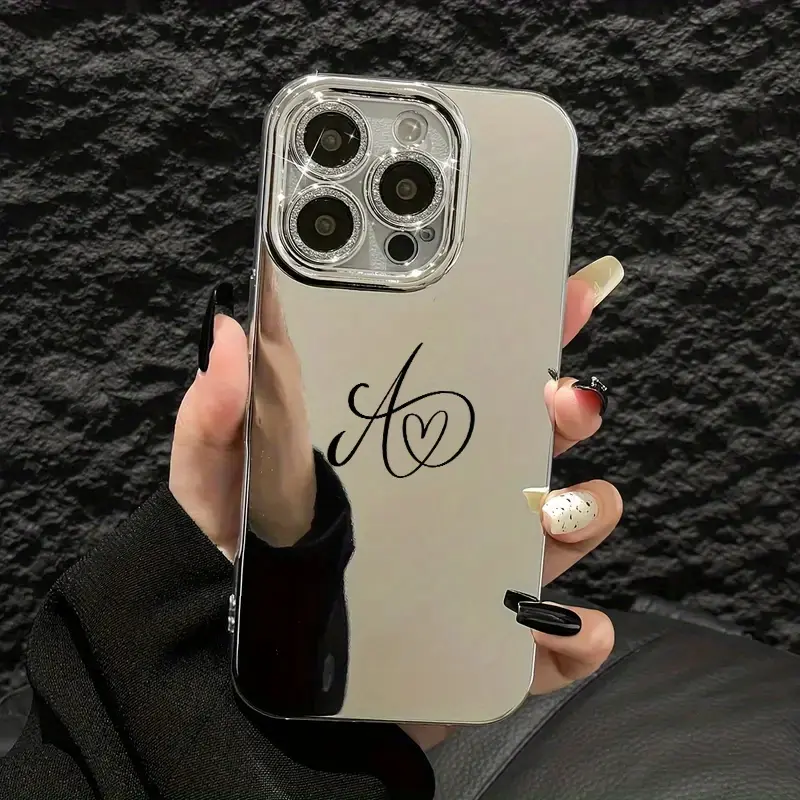
Interlocking Initial Monogram Phone Case
iPhone 17 Pro · White · $9.90 USD at catalog checkOpen this option to review the model, color and artwork.
View this exact option →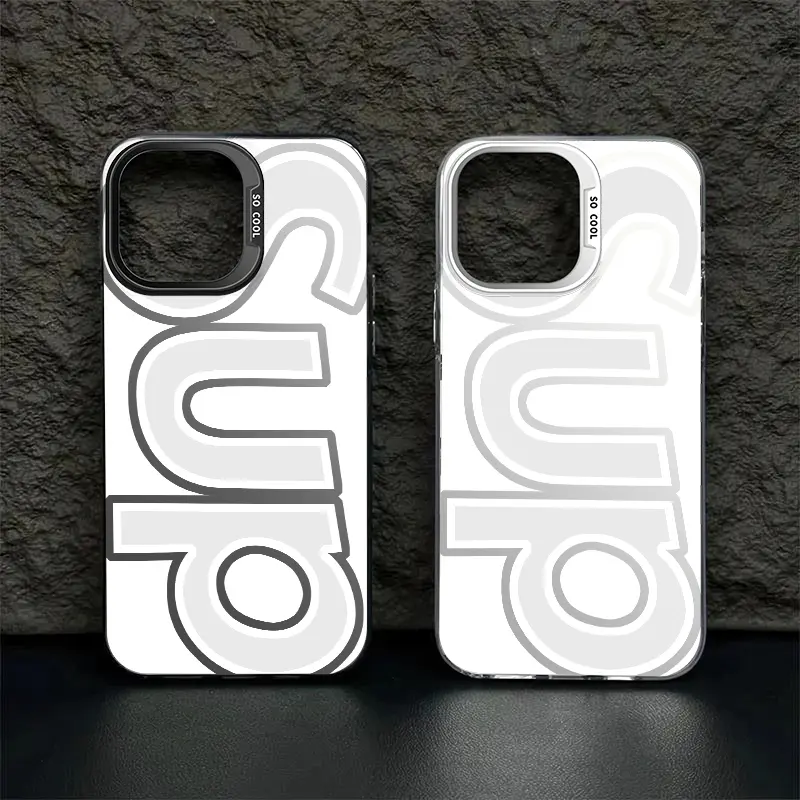
Oversized Bubble Letter Phone Case
iPhone 17 Pro · White · $9.90 USD at catalog checkOpen this option to review the model, color and artwork.
View this exact option →Use your own artwork when the letters must be exact
Prepare a picture with the letters already arranged the way you want them to print. Use one strong shape for a single initial, or give two letters enough space to read in the right order. If you overlap them, check that a stroke from one letter does not hide a line you need to recognize the other. Use artwork you own or have permission to use.
Open the photo case editor, select the exact device, upload your artwork, and look at the preview. Read the letters again from top to bottom or left to right, whichever is intended. Check the edges and camera area for cropped strokes. If a letter looks unclear in the preview, try an artwork version with more space around it and review the new preview before proceeding.
If you are still choosing between two arrangements, prepare two files and name them with the order of the initials. Use the preview for the intended phone to compare them. Keep the approved file handy if you need to open the design again. This is especially useful when a second recipient has a different phone and the camera area sits in a different part of the artwork.
For letters drawn in a script style, inspect small loops and joins in the preview. If two letters merge visually, try a simpler version before ordering. You can ask someone who knows the intended initials to read the preview without telling them the order first. That gives you a second check before the artwork goes on a gift.
Check the gift one last time before paying
For a ready-made design, check the product name, full phone model, case color, quantity and current price. For a custom design, check the letter order, the exact artwork file and the final preview on the selected phone. Read the order summary for the total and available delivery options before confirming.
If you are unsure whether a different listing lets you change its lettering, send Customer Care the exact product link and ask what can be changed on that option. For a surprise gift, you can save the exact option link or ask someone who knows the recipient’s phone to check the model with you. You only need the model name. Leave out the serial number and other device identifiers if you share a screenshot.
Quick answers
Can I change the letters by selecting a different case color?
The two catalog links in this guide select a model and color. To use your own letters, arrange them in an image and review that image in the photo case editor.
Will a white option fit every iPhone 17?
Check the full model name. The two examples open iPhone 17 Pro options. Choose the exact option for any other model before ordering.
What if the initials look too close to the camera opening?
Move the artwork in the preview or add more empty space around the letters in the source image. Then check the preview again on the exact phone model.
Ask about a specific listing
Contact CasePop Customer Care or browse more CasePop buying guides.