
Create a case with your own logo · $35 →
A studio phone needs one recognizable mark
Imagine the phone you carry while packing orders, taking appointments or photographing new work. A simple version of your shop's logo can make that everyday object feel connected to the business. The useful question is not how much information will fit. It is which single detail still identifies your shop when the phone is resting on a desk or sitting in your hand.
Start with the main symbol or the business name. Leave a tiny strapline, street address, social handles and a long service list out of the first version. A phone case is a small object with a camera opening and curved edges. Artwork that looks comfortably spaced on a laptop can become crowded once it is arranged on that narrower surface.
Export an image of your logo, rather than a website screenshot
Find the original logo file or ask the person who designed it for a large image export. The CasePop studio works with uploaded images; it is not a vector-logo editor. If your original is an SVG or a design-project file, export a PNG before you begin. Keep the editable original separately so you can revise the lettering later without rebuilding it from a screenshot.
A transparent PNG is useful when you want the mark without a rectangular background. A JPG or PNG with a deliberate background is useful when that background belongs to the design. Exporting a JPG does not create transparency. Avoid taking a screenshot of your website header: it may include navigation text, extra margins or a much smaller version of the logo than the file you already own.
The current upload control allows one image up to 50 MB and recommends an original at least 1500 pixels on the shortest side. That is preparation guidance, not a promise that any large file will print sharply. Enlarging a tiny logo makes a larger file, but cannot recover details that were missing from the original.
Choose the background before you choose the crop
Decide whether your logo should stand alone or sit inside a complete brand-color panel. With a transparent file, the surrounding case and selected color remain part of the composition. With an opaque image, the image's own background is part of the uploaded artwork. Compare the result with the actual case color rather than assuming the editor's pale background will be printed as white ink.
Our example uses the fictional words YOUR STUDIO as teaching artwork, not a customer order or a photograph of a finished print. The captures below show the actual local editor using current CasePop source. Use them to understand placement and the controls. They do not establish color accuracy, the final camera cutout or the quality of a physical print.
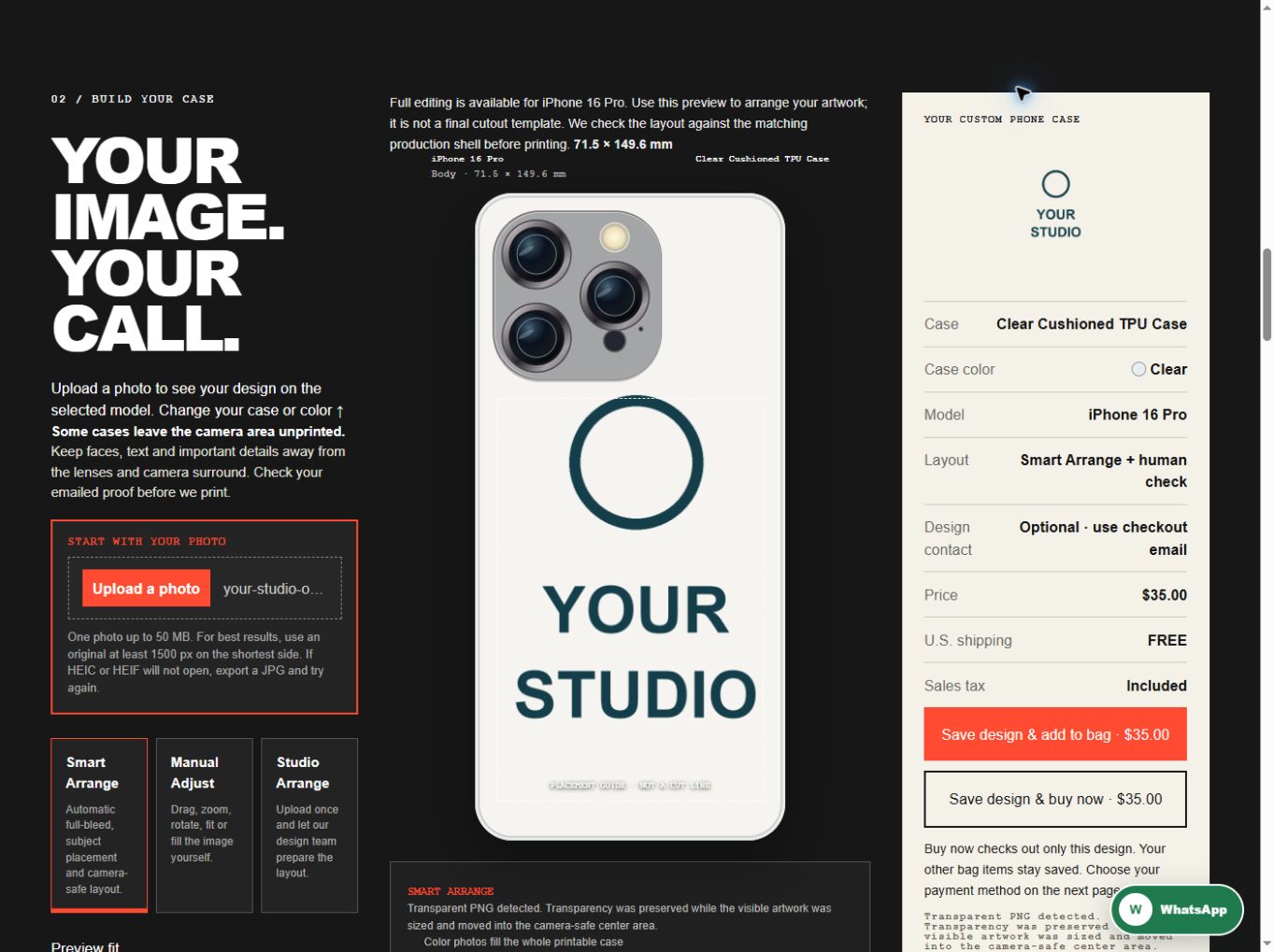
Choose your phone and case before judging the layout
In Choose your case, select the full phone-model name first. For example, iPhone 16 Pro and iPhone 16 Pro Max are separate selections. Then choose a case style and its color. Clear Cushioned TPU Case and Textured TPU Case are two current choices in the phone selector; their previews show different finishes. Their names do not establish a tested protection rating or guarantee how your logo's colors will reproduce.
The selector initially shows four styles, with the remaining styles available through the expand control. You can inspect the camera layout for the selected iPhone. Some cases leave the camera area unprinted, so keep the symbol and every important letter away from that region. Switching models, styles or colors is a reason to check the composition again, even when you upload the same file.
Review the complete mark before making it larger
Upload the logo and inspect Smart Arrange's result. Transparent PNG artwork can retain transparency, while white-background cleanup is applied only when the editor has high confidence. Do not depend on automatic cleanup to repair a complicated logo. If a light-colored letter, border or intentional white panel disappears, use a suitable original export and review the result again.
Manual Adjust gives you drag, zoom, rotate and fit-or-fill controls. Start with Fit when the entire wordmark matters, then inspect the space around every edge. A larger crop can make the main symbol stronger while cutting off a small letter or part of a circular border. Read the name from beginning to end instead of judging only the center of the image.
For a long horizontal logo, a smaller complete mark with breathing room may be clearer than a large cropped version. If you need help arranging it, Studio Arrange is the separate option for having the design team prepare the layout from the uploaded artwork. It is not an automatic redraw or a promise to recreate a missing original logo.
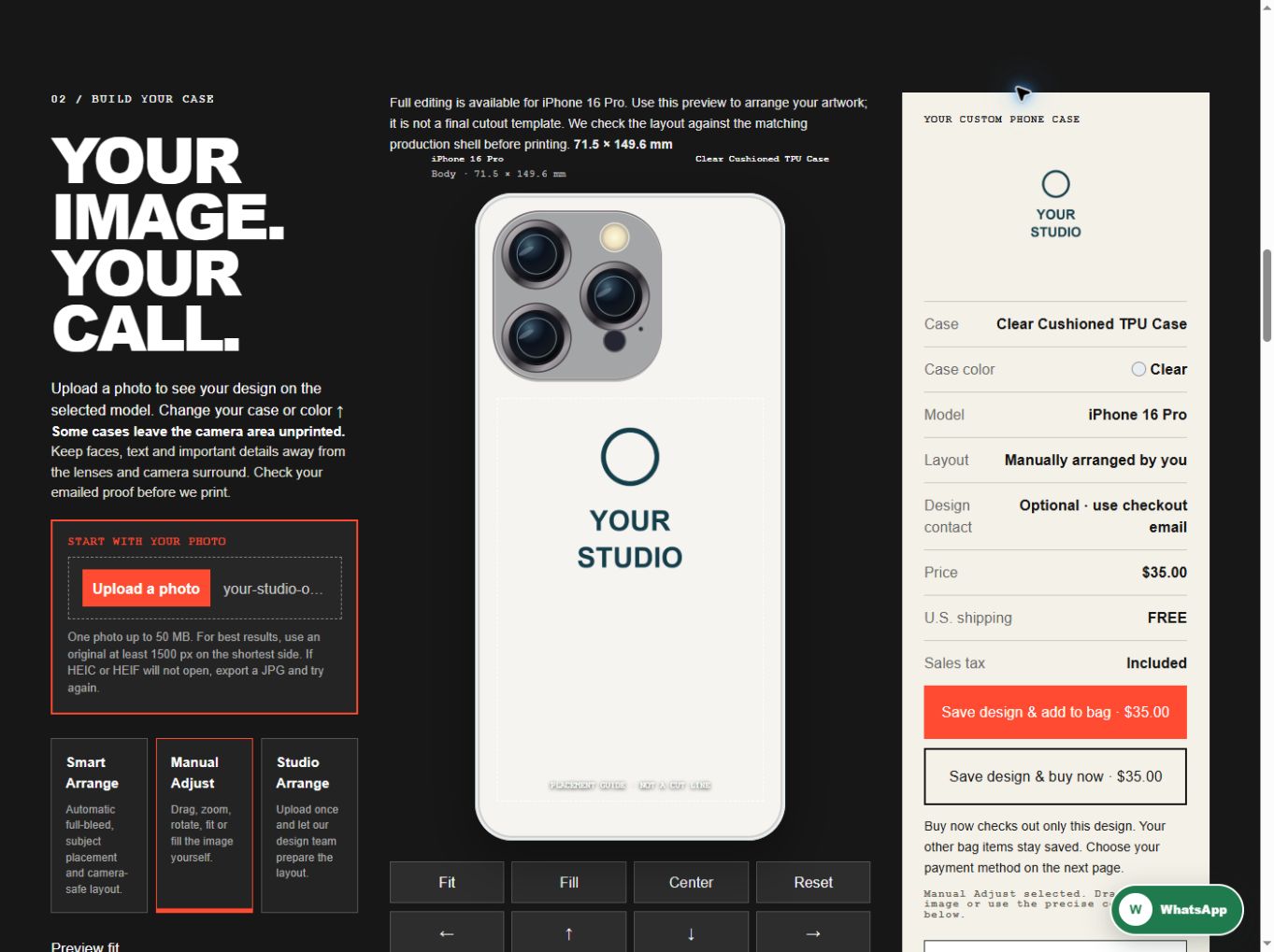
Check one complete design before creating another
Before continuing, compare the summary with your choices: phone model, case style, case color and layout method. Review the $35 phone price in the current studio. An iPad case is a separate service with a different price; a larger device is not simply another quantity of the phone design. If you are preparing cases for coworkers, make and check the appropriate design for each person's exact phone.
Use the checkout email you can actually receive messages at, and follow the current design-confirmation instructions shown in the studio. A browser preview is a placement guide, not the final print proof. Check spelling, the logo version and camera clearance when reviewing the proof. If your artwork raises a question, contact CasePop before approving it rather than treating an enlarged preview as a guarantee.
You do not need a store password to begin designing. Choose your case, upload your own mark and review it before you decide to pay. This guide's demonstration did not save a design to the production service, create an order or make a payment.
Questions before you upload
Can I paste my website address instead of uploading the logo?
Use an image file of the logo in the upload control. A website address is not the artwork file, and a screenshot of a whole page can include unwanted text or margins.
Can I keep the logo's background transparent?
Use a PNG exported with transparency and inspect the preview. JPG does not retain transparency. The case color, print area and final proof still need checking.
Is one custom business-logo phone case $35?
The phone DIY service was $35 at this guide's current offer check, with standard shipping to eligible U.S. addresses and applicable sales tax included. Review the live studio and checkout before paying.
Start with the mark people recognize
Have your original file ready, then check the model, color and complete wordmark in the studio.
Create your business-logo case · $35 →Ask CasePop about your artwork · Shipping details · Exchange and refund policy